16x16 Pixel Art Maker
Turn a picture into 16x16 pixel art: 16 cells across, 16 cells down, 256 pixels in total. Upload an image, tick Square crop, keep the colors few, and download a crisp 16×16 PNG or a scaled-up copy for sharing. Free, and your image never leaves your device.
Converted in your browser — your image is never uploaded.
Try an example:
Adjust brightness, contrast, saturation
Download
Colors used (click to copy hex)
16x16 pixel art examples
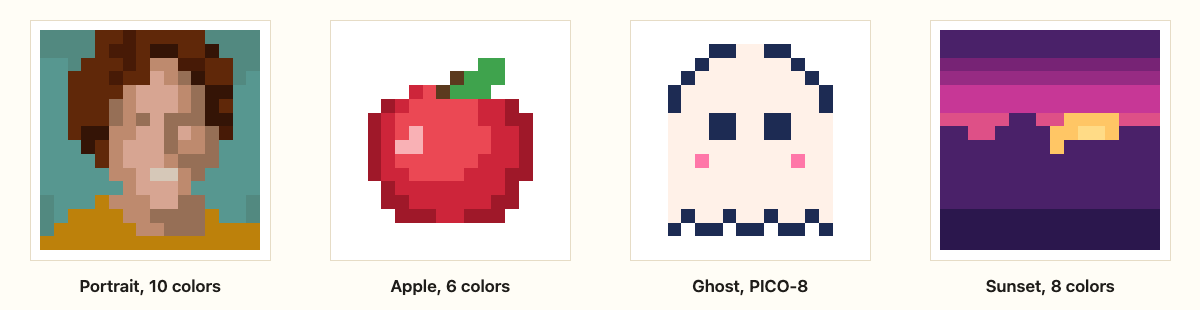
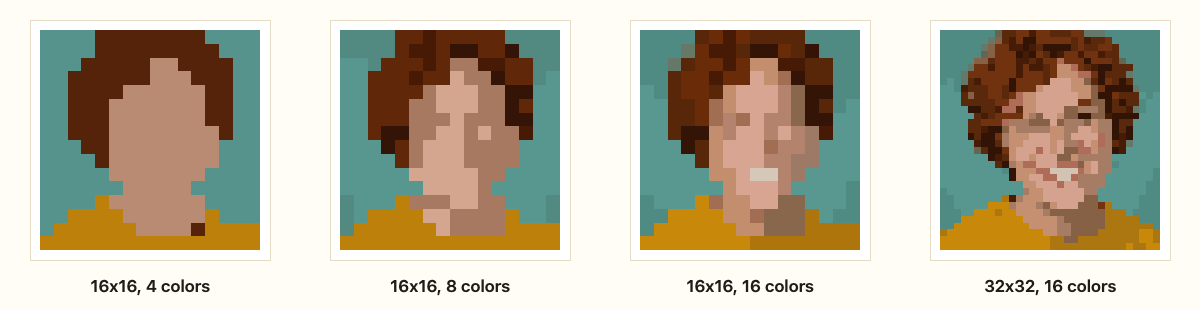
All of these were made with the converter on this page. Simple shapes survive 16 × 16 well; a whole face does not, which is why portraits usually need 32 cells or a tighter crop.
What fits in 16x16 pixel art?
A 16x16 grid has 256 cells, the size of a classic game item, a tile or a small icon. Many retro games drew their items and tiles at this size, and block-building games such as Minecraft use 16 × 16 textures by default. At this scale every single cell matters: one pixel can be an eye, a highlight or the whole stem of an apple.
That is why the subject decides how good 16x16 pixel art looks. Bold, simple shapes with one main color each (fruit, hearts, potions, coins, ghosts, swords, logos) read well. Detailed photos do not: in the examples above, a full head-and-shoulders portrait keeps its hair color and outline but loses the face. For a recognizable face, crop tightly around it first or use 32 cells.
How to make 16x16 pixel art from an image
- Pick or crop a simple subject. Crop the photo so the object fills most of the frame, or use a picture with a plain background. A cut-out PNG with a transparent background works best.
- Set the size to 16 × 16. This page starts at 16 cells wide. Tick Square crop so the height is also 16; otherwise the height follows the shape of your image.
- Keep the palette small. 4 to 8 colors give the cleanest sprites; up to 16 keeps more shading. A fixed palette such as PICO-8 or Game Boy gives a consistent retro look across a whole set of icons.
- Use Crisp edges and no dithering. At 16 × 16 there is no room for dither patterns, and Crisp keeps outlines from turning into muddy in-between colors.
- Download. Save the PNG at 1× for a true 16 × 16 file, or at 16× / 32× to share it without blur. The grid PNG and the spreadsheet pixel art download are handy when you want to rebuild the icon by hand.
Tips for cleaner 16x16 sprites
- Silhouette first. If the shape is not recognizable as a black outline, it will not be recognizable in 16 × 16 either. Try a different photo angle before adjusting colors.
- Raise contrast. Open Adjust brightness, contrast, saturation and add a little contrast so the subject separates from the background.
- Fix a few pixels by hand. A converter gets you most of the way there. Open the 1× PNG in a pixel editor to remove a stray pixel or add a dark outline.
- Make a matching set. Convert every icon with the same palette and the same settings so they look like they belong to one game or one sticker pack.
16x16 or 32x32?
| Size | Cells | Best for |
|---|---|---|
| 16 × 16 | 256 | Items, tiles, small icons, favicons, emoji-sized stickers |
| 32 × 32 | 1,024 | Characters, faces, profile pictures, detailed icons |
Larger sizes, up to 256 cells wide, are on the main image to pixel art converter.
16x16 pixel art FAQ
How big is a 16x16 pixel art PNG?
At 1× the PNG is exactly 16 by 16 pixels, one pixel per cell, which is what game engines and icon tools expect. The 16× and 32× downloads are 256 × 256 and 512 × 512 pixels with sharp square pixels, for sharing or printing.
How do I make sure the result is exactly 16x16?
Set Grid width to 16 and tick Square crop. Without Square crop the height follows your image, so a wide photo would give something like 16 × 11 cells.
Can I edit single pixels after converting?
Not in this tool. Download the 1× PNG and open it in a pixel editor such as Aseprite or Piskel to fix stray pixels or add an outline.
Can I make 32x32 pixel art too?
Yes. Click the 32 preset (or any width up to 256) and keep Square crop on. 32 × 32 has four times as many cells, which is usually enough for a recognizable face.
Is this 16x16 pixel art maker free?
Yes. It is free with no sign-up or watermark, and the conversion runs in your browser, so the image is never uploaded.