Spreadsheet Pixel Art Maker
Make spreadsheet pixel art from any picture. Upload an image, pick how many cells wide it should be, then click “Excel / Google Sheets (.xlsx)” to get a workbook where every cell is one colored pixel. Tick “Write color numbers in cells” for a color-by-number version. Free, and your image stays on your device.
Converted in your browser — your image is never uploaded.
Try an example:
Adjust brightness, contrast, saturation
Download
Colors used (click to copy hex)
What the spreadsheet looks like
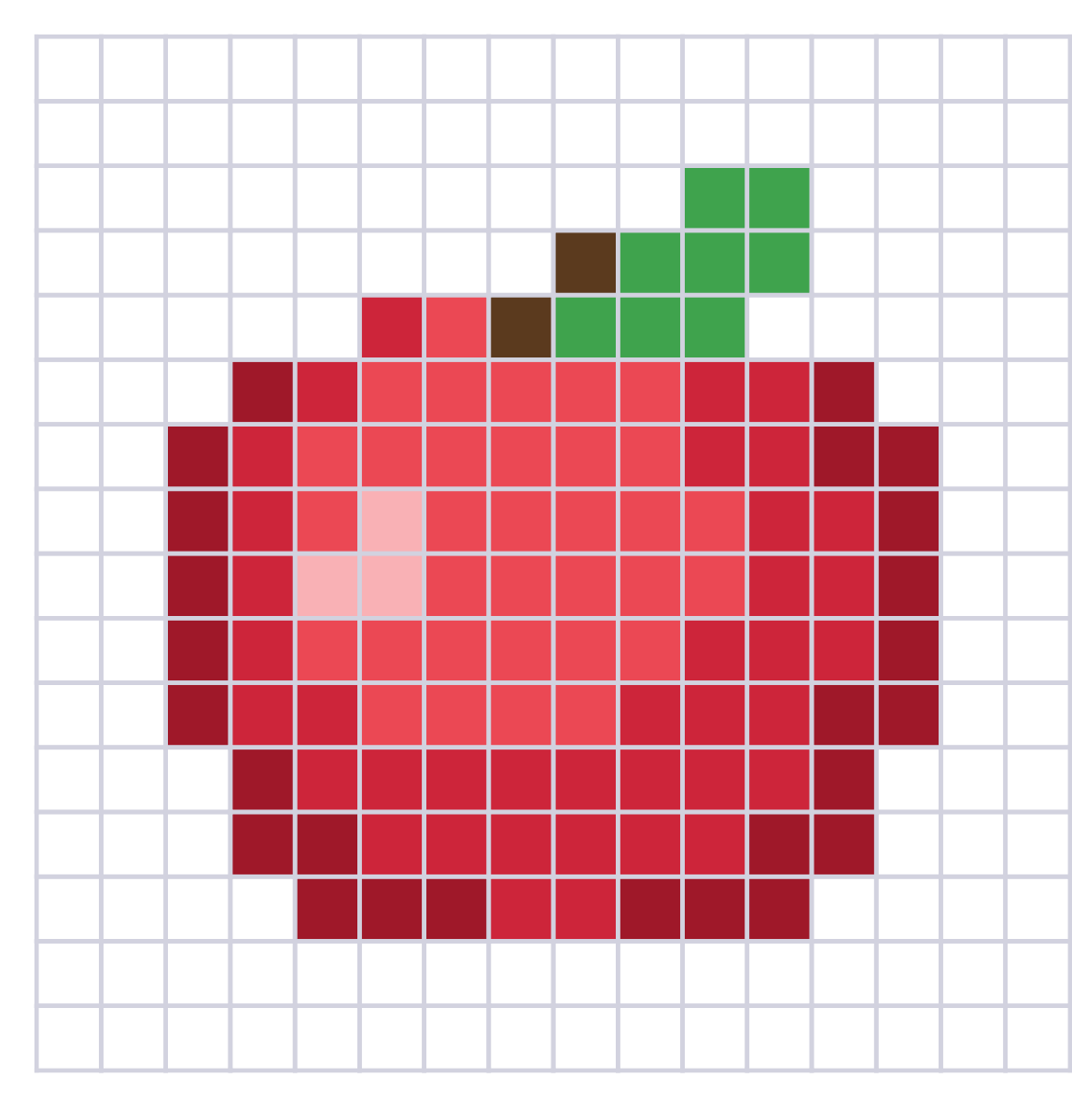
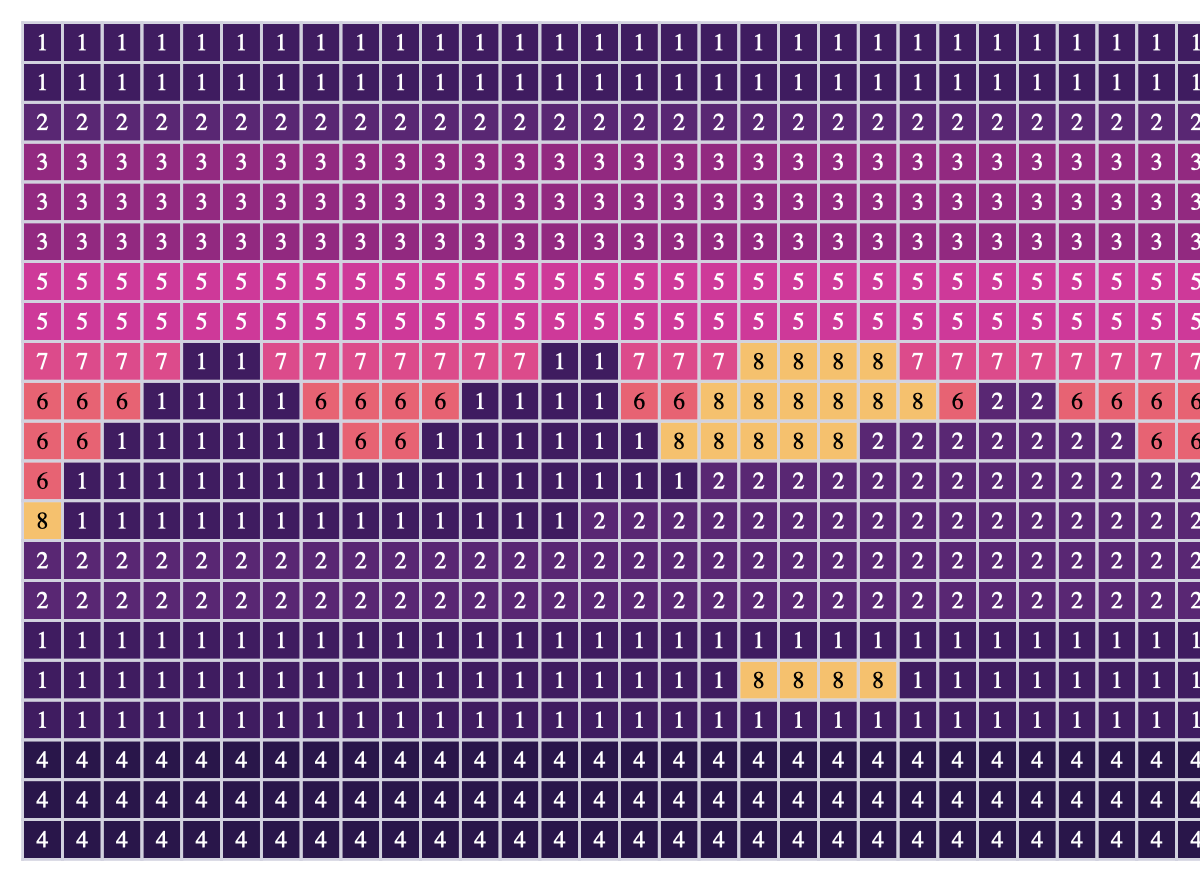
Both files below were downloaded from this page and opened without any editing. Rows and columns are already square, so the picture is not stretched.
What is spreadsheet pixel art?
Spreadsheet pixel art is a picture drawn by filling cells in Excel or Google Sheets with color, one cell per pixel. Because the grid is already there, it is a popular classroom activity: students color cells by number, count how many cells use each color, or reveal a hidden picture as they work through a set of problems. It is also a quick way to plan a bead, cross stitch or block design on a computer.
Coloring hundreds of cells by hand takes a long time, and squinting at a photo to decide which color each cell should be is the hard part. This page does that step for you: it shrinks your image onto a grid, reduces it to a small set of colors and writes the result into a real spreadsheet file.
How to turn an image into spreadsheet pixel art
- Upload an image in the converter above, or try one of the examples. Simple pictures with clear shapes, such as cartoons, logos, fruit or pets, give the cleanest result.
- Set the grid width. This page starts at 32 cells. Choose 16 for a quick 16x16 pixel art icon, or 48 to 64 when you want more detail and do not mind a bigger sheet.
- Keep the colors few. For a worksheet that people will color by hand, 6 to 12 colors is plenty. Leave dithering off so each area is one solid color instead of a checker pattern.
- Download the .xlsx. Click “Excel / Google Sheets (.xlsx)”. Tick “Write color numbers in cells” first if you want a color-by-number sheet.
Open it in Excel or Google Sheets
- Excel: open the downloaded file. The picture is on the first sheet, called Pixel Art.
- Google Sheets: open a blank spreadsheet, choose File → Import → Upload, select the file, pick Replace spreadsheet, and click Import data.
What is inside the file
The first sheet holds the picture. Columns and rows are sized so each cell is a square of about 20 pixels, and transparent parts of your image are left as empty cells. The second sheet, Color Key, lists every color with its number, a colored swatch, its hex code and how many cells use it. Those counts are handy for math questions such as “what fraction of the picture is red?” and for buying enough beads or yarn.
Ideas for the classroom
- Color by number: download the numbered sheet, select all cells, then remove the fill and set the text to black (Excel: Fill Color → No Fill and Font Color → Automatic; Google Sheets: Fill color → Reset and Text color → black). You now have blank cells with numbers that students color using the Color Key.
- Counting and fractions: use the Color Key counts to ask which color covers the most cells or what percentage of the grid is filled.
- Build it yourself: give students the finished picture and a blank sheet, and ask them to recreate it with Excel's fill color or Google Sheets' fill tool.
- Hidden picture quizzes: teachers who already make self-checking “mystery picture” sheets with conditional formatting can use the numbered sheet as the answer layout.
Printing tips
A grid wider than about 40 columns will not fit on one page at full size. In Excel use the page setup option to fit the sheet on one page, and in Google Sheets choose Fit to width in the print settings. Turn on gridlines in the print settings so the empty cells of a color-by-number sheet print as boxes.
Want a PNG or a printable PDF pattern instead? The same converter on the image to pixel art converter home page downloads those too.
Spreadsheet pixel art FAQ
Can I import the file into Google Sheets?
Yes. In Google Sheets choose File → Import → Upload, pick the .xlsx file, choose Replace spreadsheet or Insert new sheet(s), then Import data. All columns and cell colors come through, and the Color Key tab is imported as a second sheet.
How big can the spreadsheet be?
Up to 256 columns wide. The number of rows follows the shape of your image, up to 384 rows for very tall pictures. For hand coloring, 16 to 48 columns is a comfortable size.
How do I make a color-by-number worksheet?
Tick “Write color numbers in cells” before you download. Every cell then shows its color number, and the Color Key sheet lists what each number means.
Can I choose my own colors?
You can let the tool pick colors from your image (Auto, 2 to 64 colors) or lock the picture to a preset palette such as PICO-8, Game Boy, CGA, grayscale or black and white. Typing in your own list of colors is not available yet.
Is the spreadsheet pixel art maker free?
Yes. There is no sign-up or watermark, and the image is converted in your browser, so it is never uploaded.